
Designed one of the first AI features at KEBS
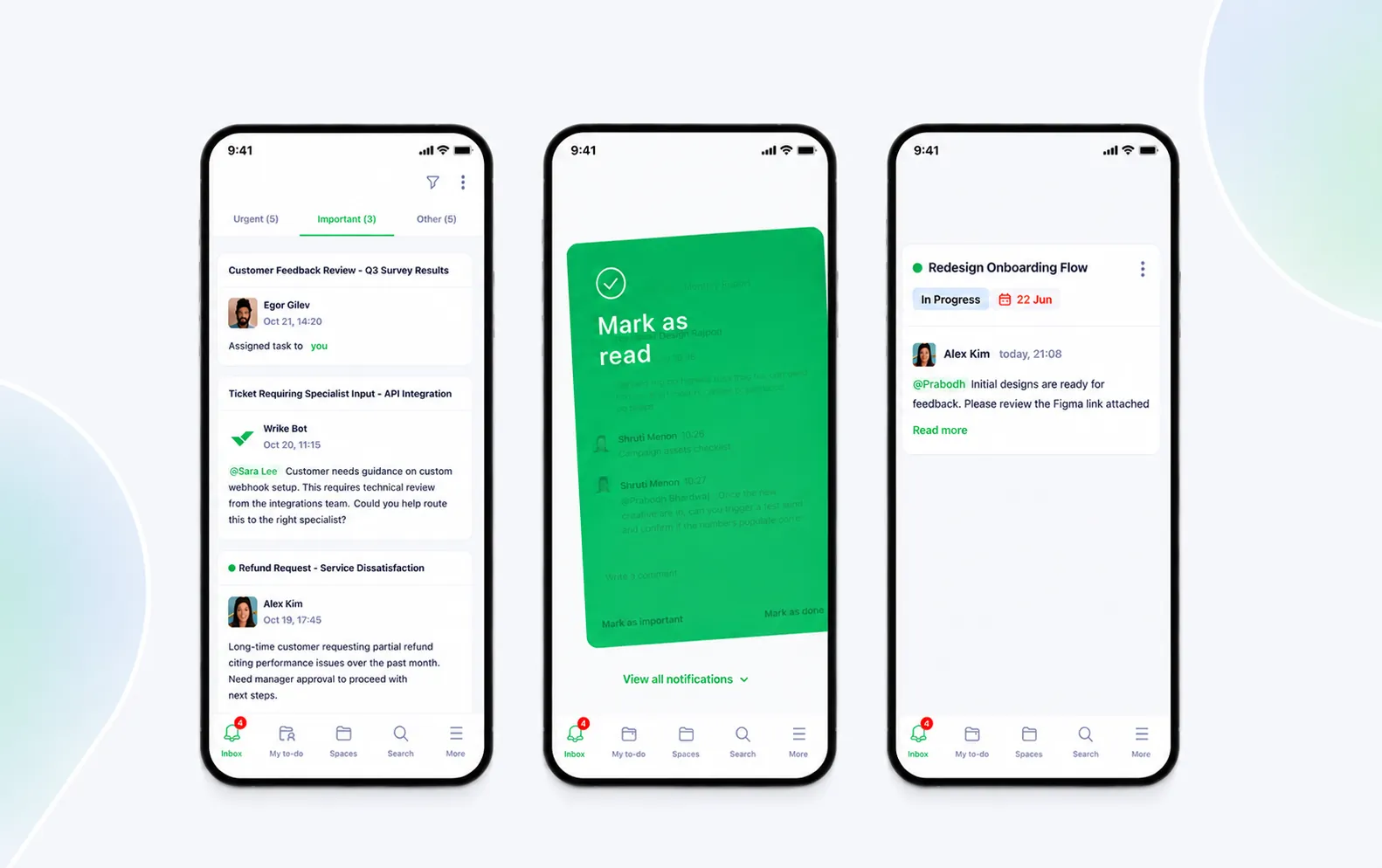
Led the design and prompt engineering to help prioritise inbox notifications on mobile.
Product Design
Prompt Engineering
Prototyping & Testing
1× Product Designer
1× Product Manager
1× UX Writer
4× Engineers
About KEBS
KEBS is an AI-native enterprise work management platform (similar platforms: Monday.com, Asana, ClickUp). While the desktop experience focuses on deep, full-fledged workflows, the mobile app acts as a companion—enabling collaboration and decision-making on the go.
Overview
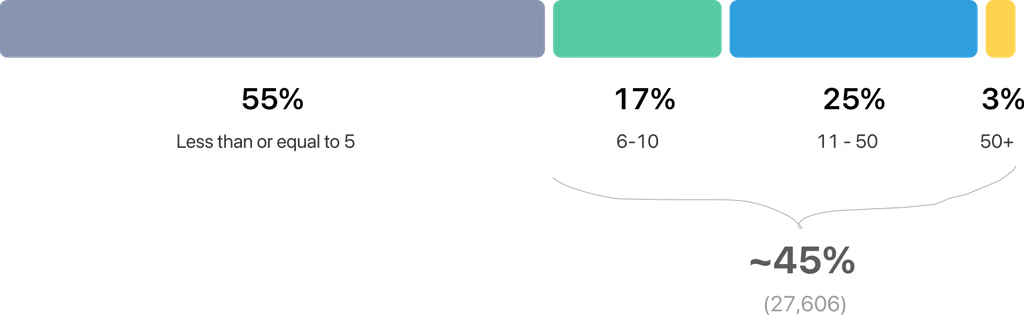
45% of users on KEBS receive more than 6 and up to 50 notifications a day.
In a sea of notifications, identifying and acting on the most urgent and important ones quickly becomes difficult.
The new Priority Inbox simplifies this process by categorising notifications into Urgent, Important, and Others based on notification context—significantly reducing cognitive load and user stress.
Impact
Problem Statement
A chronological inbox makes people scan, not decide.
For ~45% of users receiving 6–50 notifications per day, urgent approvals and blockers are routinely buried—raising the risk of missed deadlines and stalled work.
Key Pain Points
Pain Point 1: Notification Overload
A meaningful segment of users (45%) receives a high volume of notifications, leading to:
- • Important updates getting buried
- • Users missing critical tasks or deadlines
- • Increased stress and cognitive load
Pain Point 2: Difficulty in Prioritising Actions
Notifications are presented in a flat, chronological list, making it hard to:
- • Distinguish urgent from non-urgent items
- • Identify which tasks require immediate attention versus those that can wait
- • Spot high-impact work among routine updates
The Process
The project kicked off with a deep dive into user workflows, followed by iterative prompt engineering and design exploration.
Prompt Engineering
Before moving into design, the first step was validating whether and how notification prioritisation would work.
Initially, I created a custom GPT to test prompt behaviour using a sample dataset.
Later, the prompt evolved through multiple iterations—tweaking input rules, data, context, output structure, and quality. Collaborating closely with PMs, backend engineers, and QA to define expected outputs and data usage was one of the most exciting parts of the project.
The interactive element below is for illustrative purposes only. Actual prompts vary based on system needs.
Built with Cursor, hosted on Vercel ♥
Learnings
- • Build iteratively while testing with realistic data from day one
- • Clearly define input and output structures along with relevant context
- • Provide scenario-specific rules and examples to handle edge cases
- • Avoid conflicting or ambiguous rules that can degrade output quality
- • Ask AI to use specific input JSON objects in outputs to prevent hallucinations
Designs
Notification Card Improvements
Notification summary + quick action
Summaries helped only a small portion of users. Given limited mobile real estate, this option wasn't feasible.
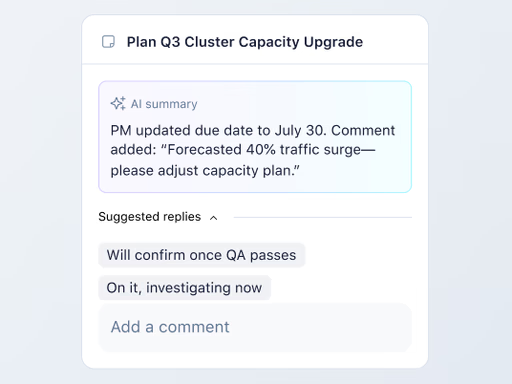
Notification summary + chips
Chips added value and helped ground users, but summaries still weren't useful enough to surface upfront.
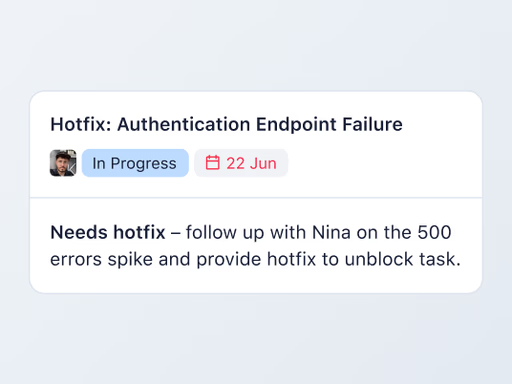
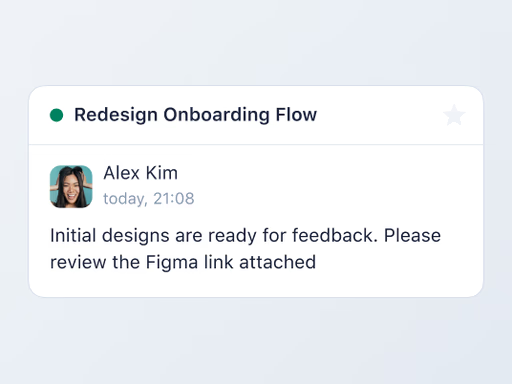
Current notification card
Contains bare-minimum information; difficult to filter and prioritise visually
(Unchanged in V1 due to tech constraints)
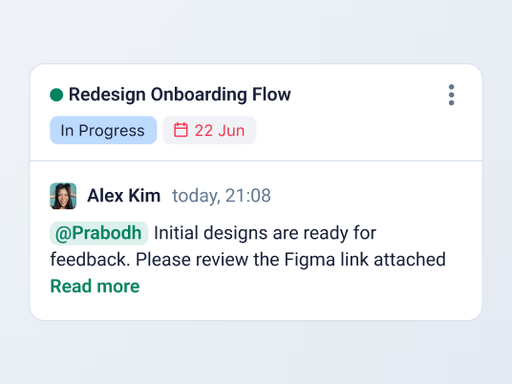
Notification card + chips (prioritised for next release)
This option surfaced key information and helped users quickly scan and prioritise notifications.
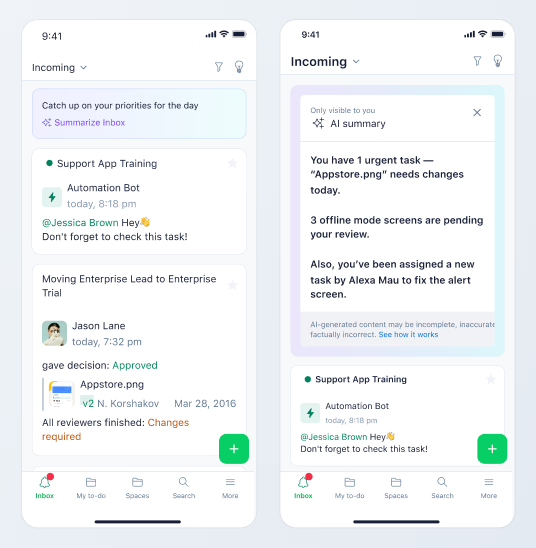
Solving for Mode of Prioritisation
Summarise new inbox notifications
Not actionable—users still need to find and process notifications again.
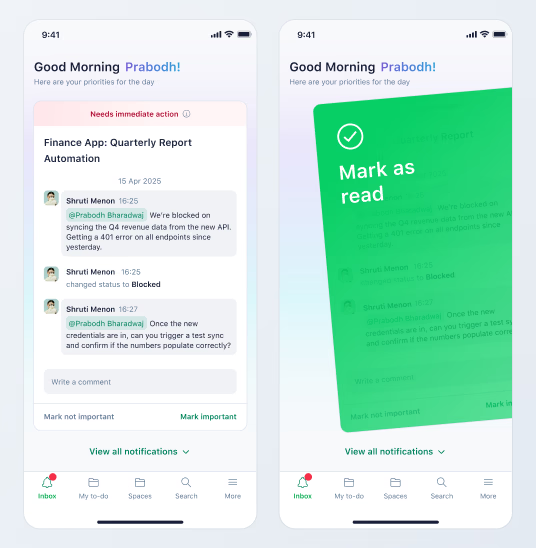
Focus mode
Reduces clutter but removes a unified view of priorities and forces linear processing.
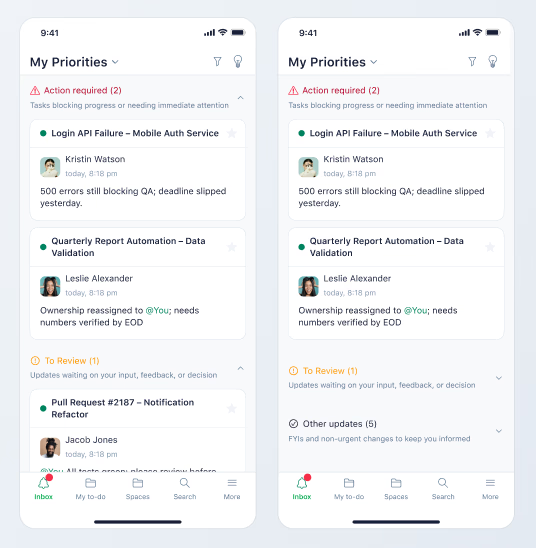
Categorising based on urgency
Provides a single, scannable list categorised by context.
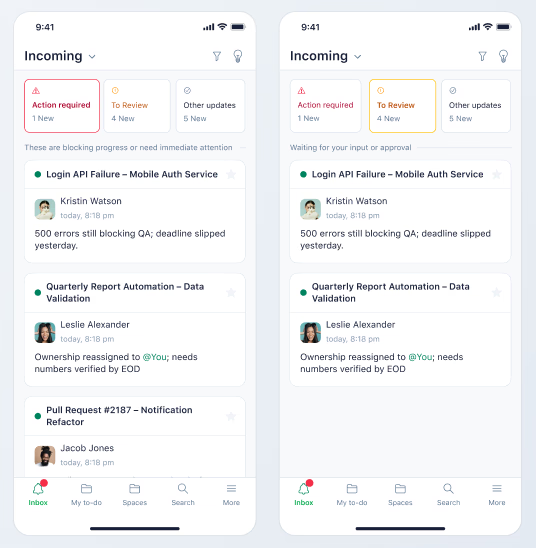
Priority tabs
Allows users to view and act on notifications within each category.
Solution
The Priority Inbox gives users a simple, categorised notification list—shifting focus from overwhelm to quick, confident action.
Anchors
Anchor tabs allow users to jump between sections while indicating notification counts per category.
Swipe Gestures
Swipe left → Mark as read / unread
Swipe right → Archive
This enables fast clearing as users complete items.
Onboarding
A 3-step onboarding flow introduces:
- • The Priority Inbox
- • Swipe gestures
- • Switching between Priority and Newest sorting modes
What's Next?
#1 Better Priority Handling
Allow users to move notifications between categories—giving more control and revealing where AI prioritisation fails.
#2 Continuous Prompt Improvement / ML Models
Certain scenarios still yield inaccurate results. Next steps include combining ML filters with prompt improvements for better precision.
#3 Personalisation
Enable custom prioritisation rules through an open input field.
#4 Scaling the Scope of Prioritisation
Some users prioritise work using system or custom fields—not just notifications. The next step is prioritising tasks, not only notifications.
…and more.